

BrandPay for Shopify
BrandPay is a Shopify app that rewards your customers with store credit when they post about your brand on Instagram. They spend the credit in your store as a Shopify gift card, at your existing checkout.
This guide covers installing the app, connecting your store, setting up your first reward, how gift cards work, and what to do if something does not look right.
Last updated
 Install from the Shopify App Store
Key facts
- App Store name
- BrandPay Performance Rewards.
- Developer
- True Ample Ltd, the company that trades as BrandPay.
- Cost
- BrandPay is free to install, with no subscription. Rewards and the service fee are billed separately from your Shopify invoice.
- Shopify permissions
- BrandPay needs access to gift cards. Access to orders is separate and optional.
- How rewards are spent
- As a Shopify gift card, entered in the gift card field at your checkout.
- Gift card expiry
- Gift cards BrandPay issues in a Shopify store do not expire.
- Checkout and theme
- No changes needed.
- Support
- [email protected]
What you need
- A Shopify store, and a login that is the store owner or a staff account allowed to install apps.
- An Instagram business account for your brand. You connect it during set-up.
- An email address for your BrandPay account. There is no password: you sign in with a one-time code sent to that email.
Cost
BrandPay is free to install, with no subscription. You pay for the rewards your customers earn, plus a service fee. Both are billed by True Ample Ltd, separately from your Shopify invoice.
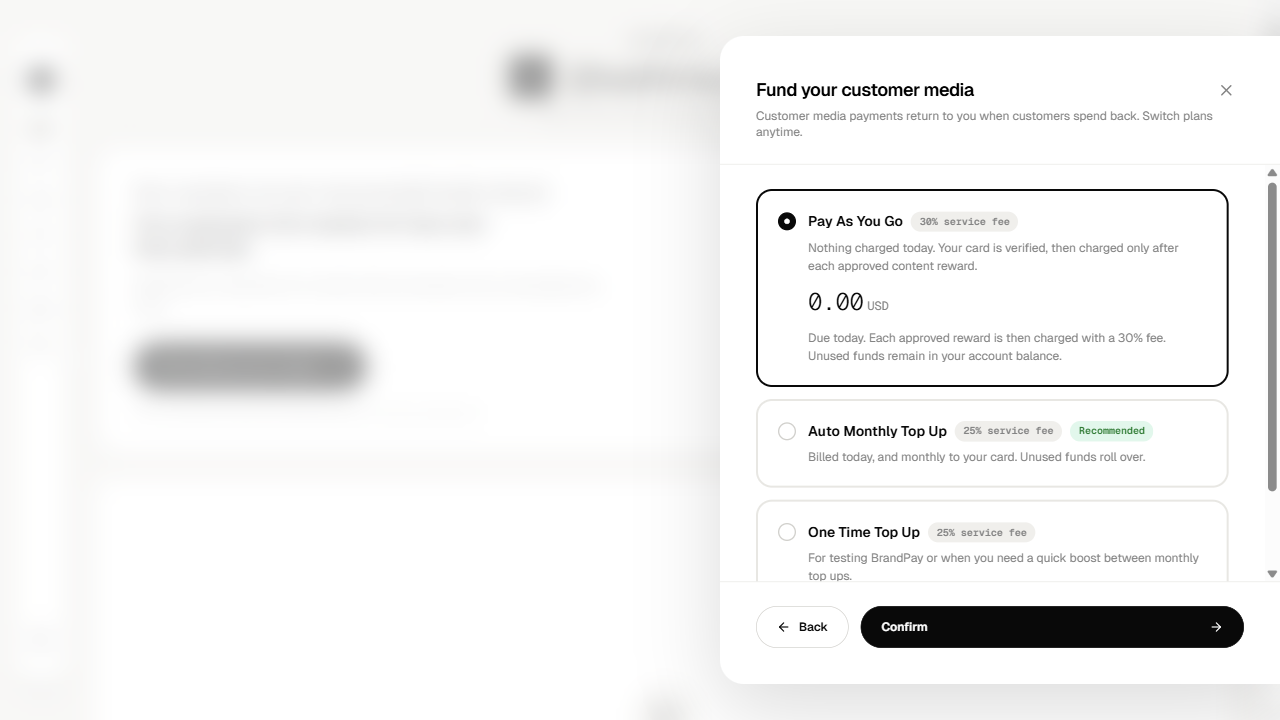
You choose how to fund rewards when you set up your first reward: Pay As You Go, Auto Monthly Top Up or One Time Top Up. Rewards pause if your balance runs out. The pricing page has the detail.
Permissions and order data
At install, BrandPay asks for access to gift cards in your Shopify store, so it can create a gift card when a customer converts a reward.
Reading orders is a separate permission, and it is optional. With order access on, BrandPay records the orders paid with a BrandPay gift card, so your dashboard shows the sales your rewards brought back. BrandPay reads orders from the day you approve, and keeps only the orders paid, in full or in part, with a BrandPay gift card.
When you uninstall, BrandPay stops creating gift cards and reading orders for the store. The privacy policy for businesses covers the rest.
- Open BrandPay on the Shopify App Store and choose Install.
- Log in to Shopify if you are asked to, and pick the store you want to connect.
- Shopify shows what BrandPay will be able to access. Confirm the install.
- Shopify sends you to BrandPay to sign up or sign in.
If you are new to BrandPay
- Choose Sign up and enter your email. Type the one-time code from the email you receive.
- Tell us about your brand, pick your primary market and at least one category, then choose Finish.
- You land on your dashboard with the store connected. If the set-up checklist shows Finish Connecting Your Store, choose it and approve the access in Shopify.
If you already have a BrandPay brand
- Sign in with the email you use for BrandPay and the one-time code.
- If you have several brands, choose the brand this store belongs to.
Check the connection: in the BrandPay menu, open Integrations. The Shopify card shows your store, with Gift Cards turned on.
Turn on order access
Order access is optional. To turn it on, open Integrations and turn on Orders, or choose Grant Order Access when your dashboard asks. Then approve the access in Shopify.
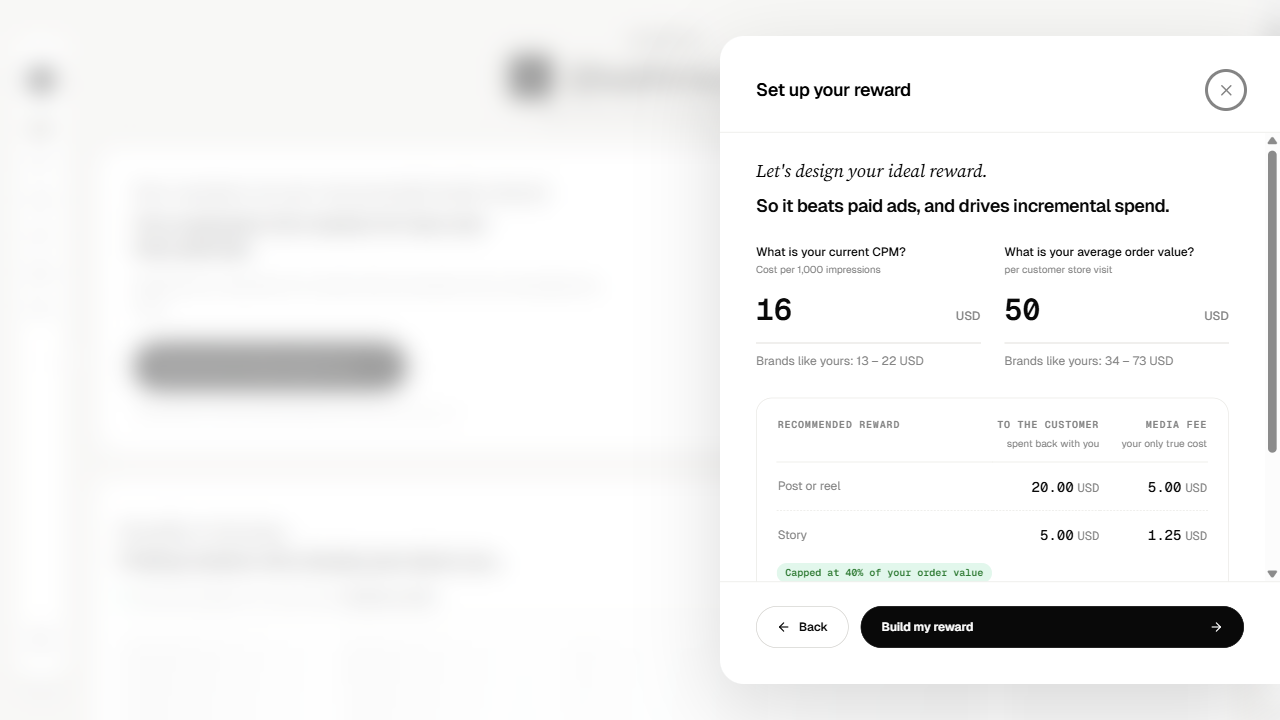
On your BrandPay dashboard, choose Recommend the ideal reward for me. It takes about a minute, and nothing goes live until you approve it.
Enter what you pay today for 1,000 ad impressions (CPM) and your average order value. BrandPay recommends a reward for a post or reel and for a story, with the media fee for each. Choose Build my reward.
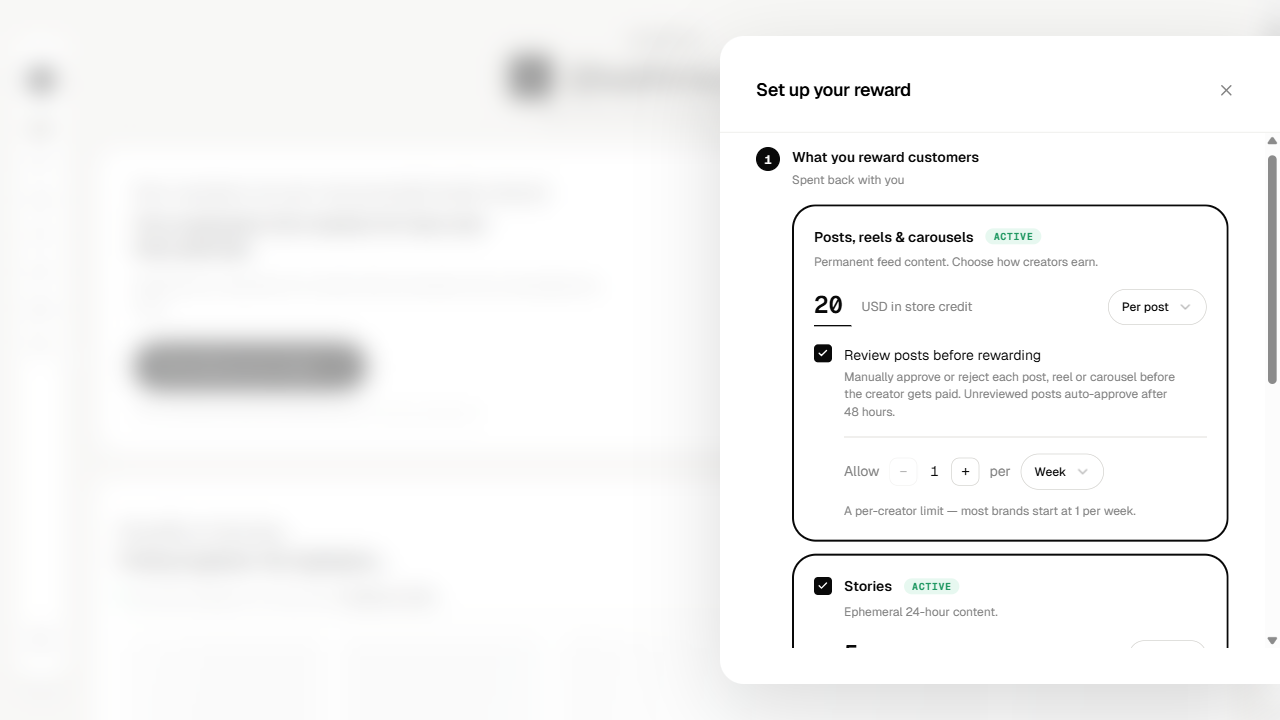
Go through the four sections, choosing Next after each one:
- What you reward customers: the store credit per post, reel or carousel and per story, whether you review content before rewarding, and how often each customer can earn.
- Where people can earn: your store's country is selected for you. Add other countries if you ship there.
- Your content preferences and guidelines: the #ad tag is always required. Add the kind of content you would like to see, or choose Suggest with AI.
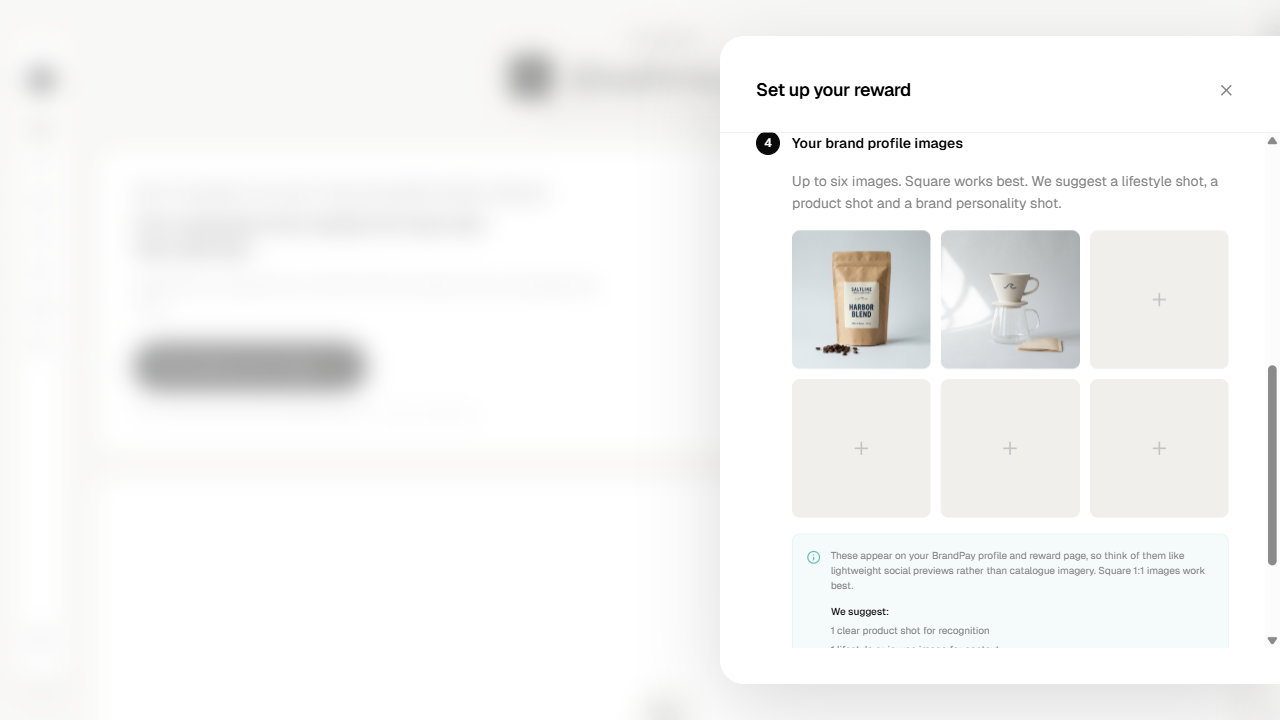
- Your brand profile images: add at least one image, up to six. Square images work best: a product shot, a lifestyle shot and one that shows your brand's personality.
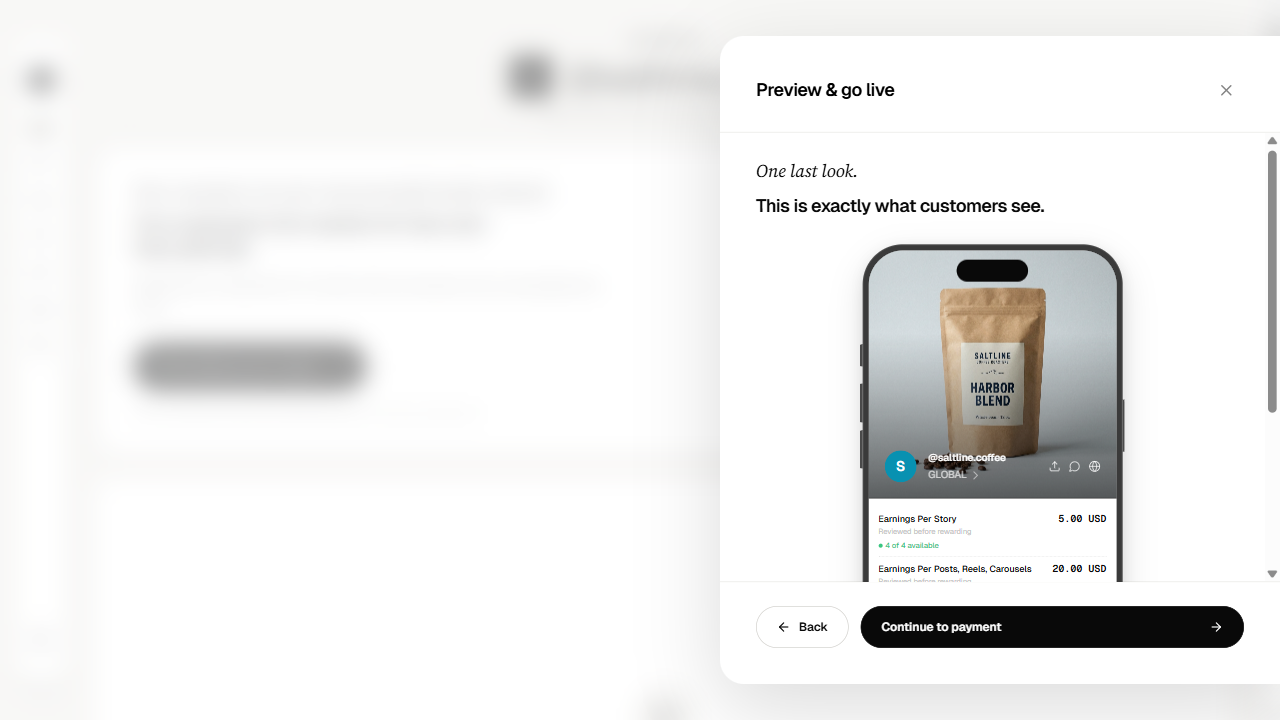
Preview & go live shows your reward exactly as customers see it. Choose Continue to payment.
Fund your customer media: choose Pay As You Go (nothing charged today, each approved reward is charged with a service fee), Auto Monthly Top Up or One Time Top Up, then Confirm and add your card. Your reward goes live once payment is set up. Rewards pause if your balance runs out.
Connect Instagram, so BrandPay can find posts and stories that mention your brand. BrandPay is a Meta-approved platform and uses Instagram's official APIs.
How it works for your customers
- A customer mentions your brand in an Instagram post, reel or story.
- BrandPay finds the post and pays the customer the reward you set. If you chose to review posts before rewarding, you approve or reject each one first.
- The customer sees the balance in the BrandPay app and converts it into a gift card for your store. The app calls it a voucher.
- BrandPay creates the gift card in your Shopify store. You will find it in your Shopify admin under Products › Gift cards.
- The customer enters the gift card code in the gift card field at your checkout and pays any remaining amount as usual.
- With order access turned on, the order appears in BrandPay next to the content that earned it. Your dashboard shows reach, spend, cost per thousand views (CPM), cost per click (CPC) and return on reward spend (RORS) alongside your paid channels.
BrandPay gift cards on Shopify
- Do BrandPay gift cards expire on Shopify?
- No. Gift cards BrandPay issues in a Shopify store do not expire.
- Do BrandPay gift cards need changes to my Shopify checkout or theme?
- No. The gift cards BrandPay creates are standard Shopify gift cards, so your checkout and theme need no changes.
- Can a customer use a BrandPay gift card with a discount code?
- Yes. A customer can use a BrandPay gift card together with a discount code, and can spend it over several orders until the balance runs out.
- Where can a customer spend a BrandPay gift card?
- A BrandPay gift card can only be spent in the store that issued it. The customer enters the code in the gift card field at checkout.
- What happens to BrandPay gift cards if I uninstall the app?
- Gift cards already issued stay in your Shopify store and can still be redeemed. BrandPay stops creating gift cards and reading orders for the store.
Uninstall or reconnect
Uninstall: in your Shopify admin, go to Settings › Apps, open the menu next to BrandPay and choose Uninstall. BrandPay stops creating gift cards and reading orders for the store. Gift cards already issued stay in your store and can still be redeemed.
Reconnect: install BrandPay again from the Shopify App Store. If your BrandPay dashboard shows an alert that Shopify permissions are missing, choose Review permissions and approve the access in Shopify.
Troubleshooting
- Why does a BrandPay gift card code not work at my Shopify checkout?
- The code goes in the gift card field at checkout. If your cart page has a discount code box, the code will not work there. Ask the customer to continue to checkout and enter it in the gift card field.
- What do I do when BrandPay says Shopify permissions are missing?
- Choose Review permissions on the alert and approve the access in Shopify. BrandPay cannot create gift cards for your store until you do.
- Why does my BrandPay dashboard show no orders paid with gift cards?
- Order access is off, or the orders were placed before you turned it on. Choose Grant Order Access and approve it in Shopify. BrandPay reads orders from that day on.
- Why is a redeemed gift card not showing in BrandPay yet?
- Orders are picked up on a schedule. Check again a little later. If it is still missing after a day, write to [email protected].
Need help?
Email [email protected] with your store's myshopify.com address and, if you can, a screenshot of what you see. Other routes are on the contact page.