

Your iPhone is now your BrandPay card.
Add your BrandPay card to Apple Wallet and pay with your iPhone at participating BrandPay venues, straight from what you’ve earned.
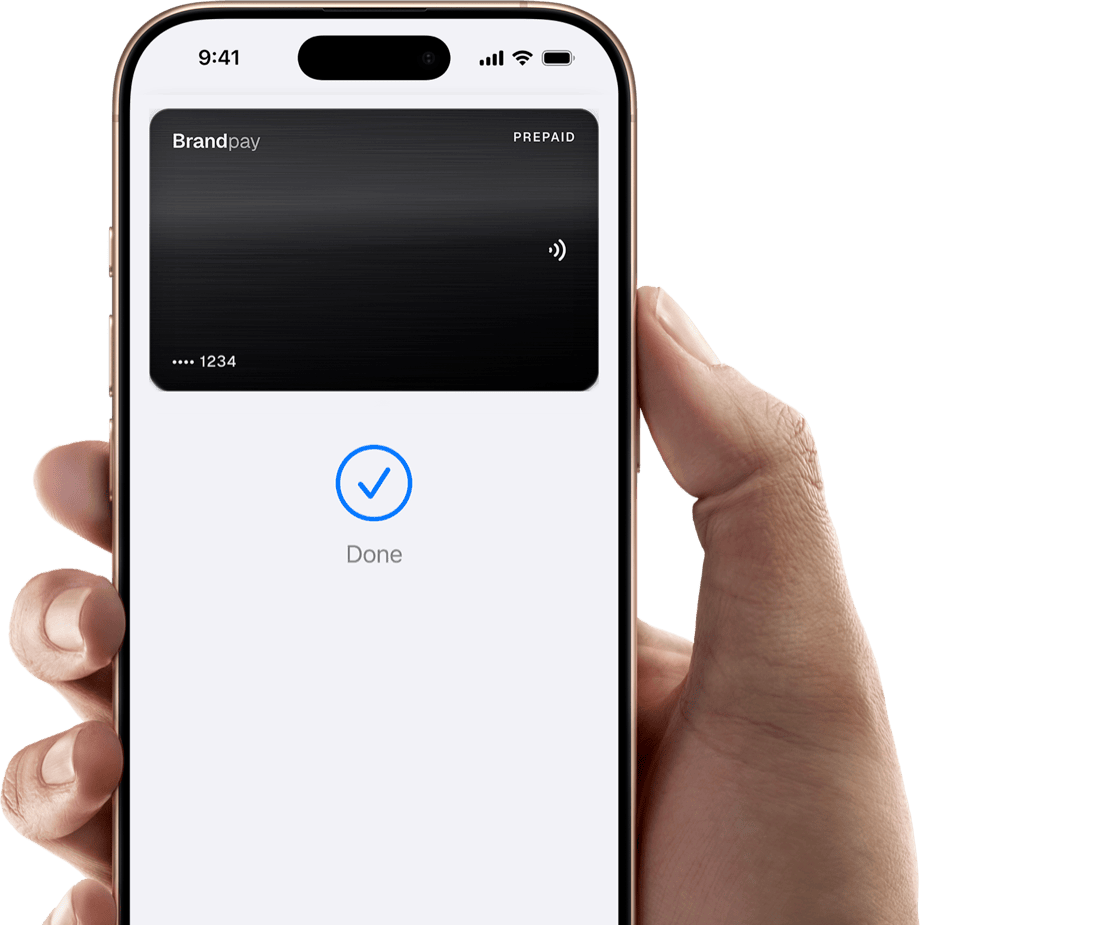
An easy, secure, and private way to pay.
Apple Pay lets you pay with your BrandPay card using any Apple device – in stores, online and in apps with a participating merchant.
Shop in person. Online. Or in apps.
Apple Pay is accepted by millions of merchants around the world. Just look for or the contactless symbol at checkout and pay with your BrandPay card at a participating merchant. To check out with Apple Pay if you’re on a computer but not using Safari or Mac, click the button and scan the code that appears on your screen with your iPhone.*
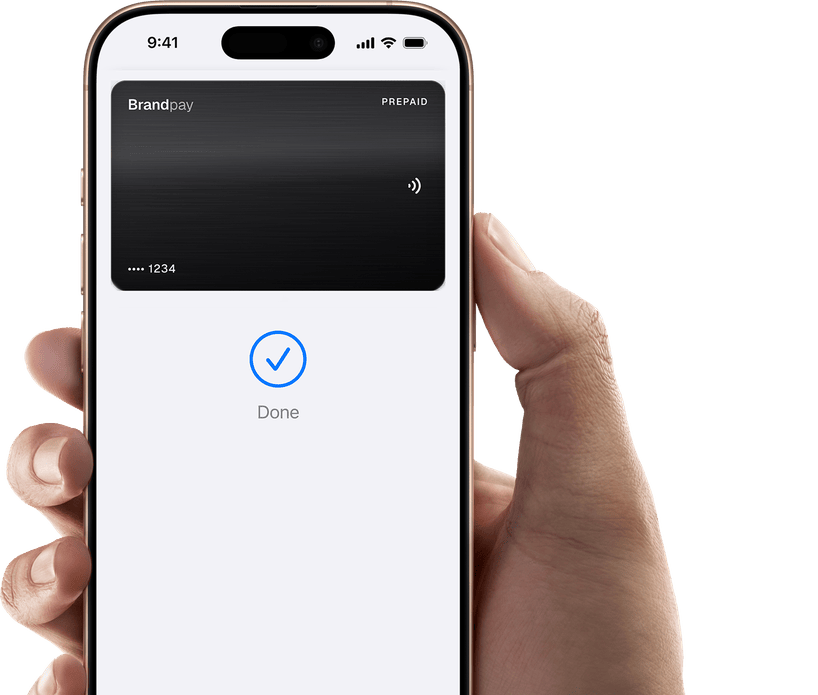
Designed to be secure. So only you can pay.
Apple Pay transactions require authentication through your device’s built-in security features - including Face ID, Touch ID, and your passcode. Your card number is never shared with merchants by Apple or stored on Apple servers. And if you misplace your iPhone, you can quickly mark it lost on Find My to suspend your BrandPay card.
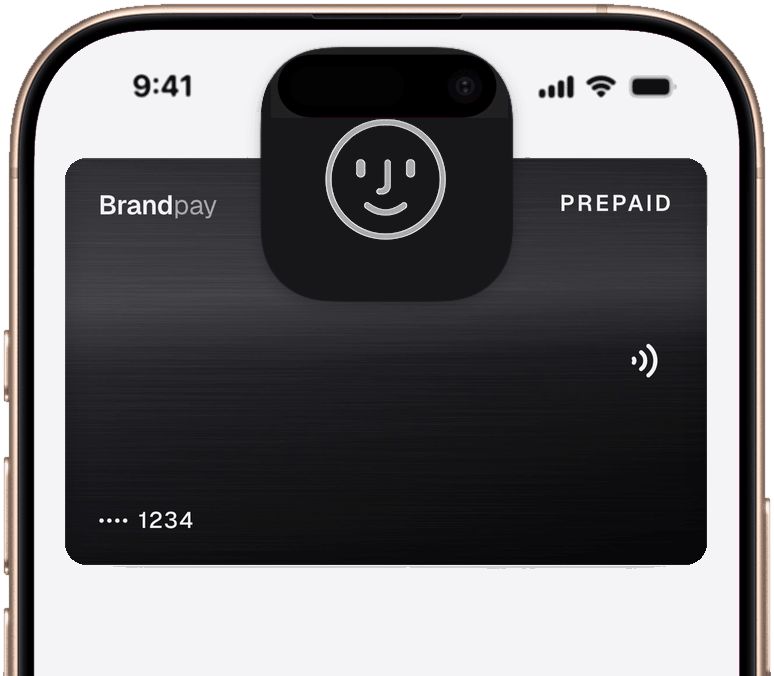
Add your BrandPay card in a few steps.
01
Open Apple Wallet on your iPhone.
02
Tap the Add (+) button, then tap Debit or Credit Card.
03
Follow the steps on the screen to add a new card.
Learn more about using Apple Pay.
The card benefits you love. With Apple Pay.
When you use your BrandPay card with Apple Pay, you’ll learn the benefits and rewards you love.
Your BrandPay card spends the earnings you’ve built up at participating BrandPay venues, so every tap comes out of what you’ve already earned.
Frequently asked questions.
Quick answers for setting up, paying, and sorting things out, and who to ask when you need a hand.
I can’t add my card. What should I check?
Make sure your device is signed in to iCloud, running the latest software, and that your BrandPay account has a verified Australian mobile number. Then try again from the BrandPay app or from Apple Wallet. If it still won’t add, contact BrandPay support from the app and we’ll check whether your card can be added.
What if I lose my iPhone or Apple Watch?
Use Find My or iCloud.com to mark your device lost, or suspend or remove your card from Apple Wallet remotely. Nothing is stored on the device itself, so your earnings stay safe in your BrandPay account and you can add your card to a new device any time.
How do I remove my card?
On iPhone, open Apple Wallet, tap your BrandPay card, then tap Remove Card in the card’s settings. On Apple Watch, remove it from the Watch app on your paired iPhone. You can also remove it remotely with Find My or iCloud.com, or ask BrandPay support to suspend it at our end.
How do I change my default card?
Open Settings, tap Wallet & Apple Pay, and choose your default card. You can also touch and hold your BrandPay card in Apple Wallet and drag it to the front of the stack.
How do refunds and returns work?
A refund from a participating BrandPay venue goes back to your earnings balance at that venue, and you’ll see it in the BrandPay app. The venue may ask for the last four digits of your device-specific card number, which you can read from your card’s details in Apple Wallet.
Where can I find my transactions?
Every payment and refund is listed in the BrandPay app, next to the earnings that covered it. Apple Wallet also shows your latest Apple Pay activity when you tap your card.
What’s the device-specific card number?
When you add your card, your device is given its own card number, so your real one is never shared with venues. If you ever need it, say for a refund, open Apple Wallet, tap your BrandPay card, and read the last four digits from the card details.
Should I contact BrandPay or Apple for help?
Ask BrandPay about your account and balance, whether a card can be added, verifying it’s really you, and transactions, declines, and refunds; we can also suspend or remove your card at our end. Ask Apple about using your iPhone or Apple Watch, the Apple Wallet app, iCloud and Find My, and device faults.
*Legal Disclaimers
To use Apple Pay you need a supported card from a participating card issuer. To check if your card is compatible with Apple Pay, contact your card issuer.
Apple Pay is not available in all markets. View Apple Pay countries and regions.
Features are subject to change. Some features, applications, and services may not be available in all regions or all languages and may require specific hardware and software. For more information, see Feature Availability.
A BrandPay account requires an Australian mobile number. Maximum A$4,999 per transaction.
Apple, Apple Pay, Apple Wallet, Apple Watch, Face ID, Find My, iCloud, iPhone, and Touch ID are trademarks of Apple Inc., registered in the U.S. and other countries and regions.